Customize The Scene
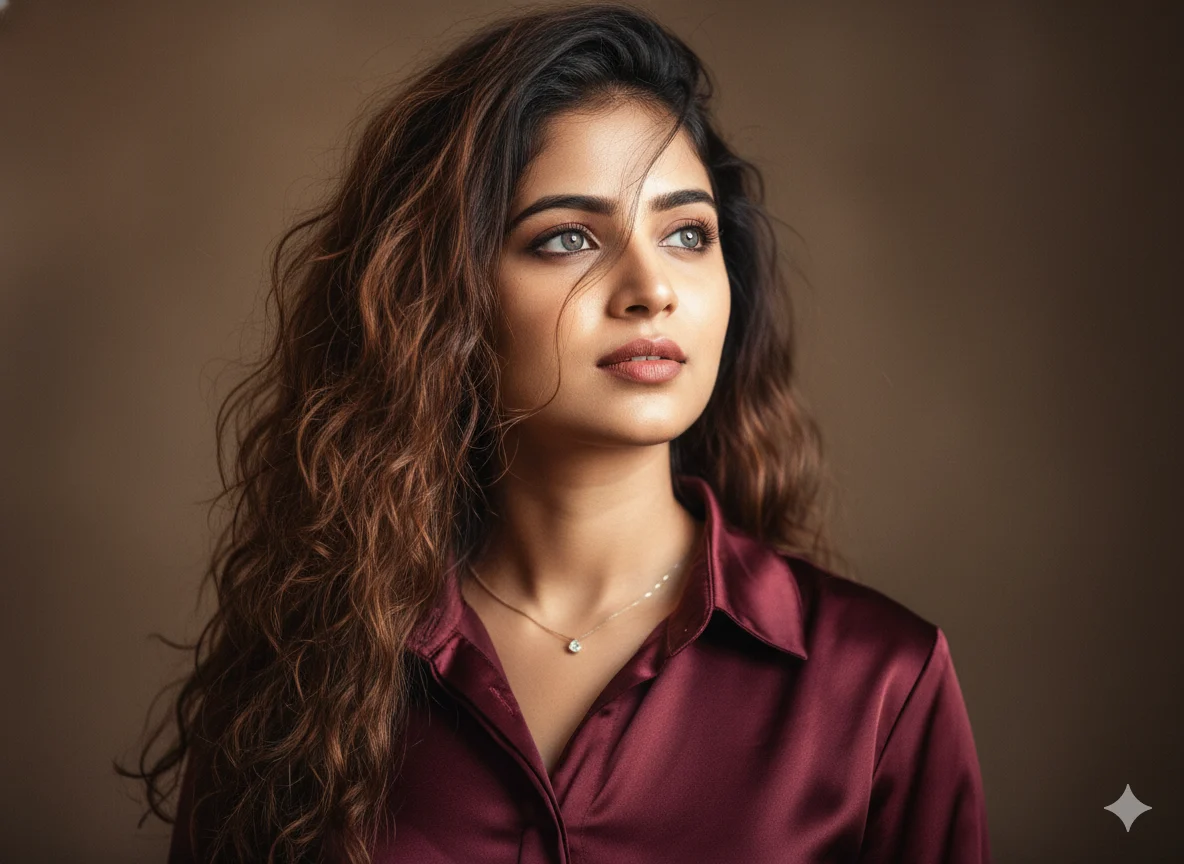
Reference
Photo
Cinematic Voluminous Curly Style
Your Custom AI Prompt
Loading prompt editor...
Switch to Google Gemini
Want to try this prompt in Gemini? Click below, but remember to copy it first!
Step-by-Step: How to Use This Prompt
- Step 1: Customize. Use the drop-down menus on the left to modify the **Hair Color & Style**, **Eye Color**, **Gaze & Lighting**, and **Outfit & Jewelry**. Watch the **Your Custom AI Prompt** box update in real-time.
- Step 2: Copy. Click the large **Copy Prompt** button to instantly save the full, modified prompt text to your clipboard.
- Step 3: Try in Gemini (Special). Open the **Gemini app** (or other advanced multimodal AI like GPT-4o). **Upload one of your own photos** (especially if it features a face you want to retain or use as a reference for style). Then, **paste the copied prompt** into the chat. Make sure to add the instruction "Use the attached photo as reference for the face, generate an image based on my photo" or similar to guide the AI if retaining specific faces is critical.
- Step 4: Paste to Other Tools. Use the copied prompt in other image generators like **Midjourney**, **DALL-E**, or **Stable Diffusion** by pasting the text directly into their prompt box. For Midjourney, you might upload a reference image first, then add the text prompt.
-
Step 5: Refine Details (Optional). For the best
results, you can manually adjust elements in the generated prompt, such as:
- Specific facial features (`cute soft-glam makeup` to `natural, dewy skin`).
- Background details (`dark background` to `blurred bokeh city lights`).
- Camera settings (`8K photorealistic image` to `4K, film grain`).
- Step 6: Generate! Submit the prompt and watch the AI bring your customized cinematic scene to life!